File editing using VI editor
As the evolution of computer is going, there are many different kinds of programming languages invented. For writing those programs we required an editor to write some C program or a shell script using an editor. In Linux we have powerful tool which provides a very stunning editing of linux files that Vi.
Bill Joy Created this editor for BSD (Berkeley Software Distribution) ,Bram Moolenaar improve it and name as VI editor. In this vi we have some small length commands which helps to manipulate the files. It also allow to copy and move text within files, from one file to other files. Lets learn some basics of vi….
Basics of vi :
Using this vi we can first create a file by vi command .You simply needs to type the the command vi and the filename. When we work with vi, it basically works on three basic modes – Command, Input and Execute mode.
- Command Mode – It is the default mode. When we press any button of keyboard ,it takes as command of terminal. To come out of this mode just press [Esc] button.
- Input Mode – When we enter vi editor and press I, i or insert button then every key takes as input to the file . Again to exit this mode please press button [Esc] .
- Execute Mode – The mode is used to handle files and perform substitution. Press the [Enter] after typing command on termina . It will enter into execute mode . After the command is run , you can go back to default command mode.
Before going use vi editor ,we have some tips will stand you in good stead. If you follow these steps ,you will not any mistakes while working with vi.
- Undo your mistakes: you erase your wrongly enter data, or deleting text ,just press [Esc] and then press u for undo your work. You also used [ctrl-r].
- Clearing screen: If your screen is grabbled for some reason then simple use [ctrl-l].
- Don’t use [Caps Lock] : vi commands are case sensitive a and A are different commands. You may this is input mode that when insert mode is on.
- Avoid using PC Navigation keys: As we used navigation keys like Up, Down, Left, Right, [Page Up], [Page Down].vi provides an elaborate keys for navigation.
- As we have seen vi have many features like file editing, making programming file. We will see detail of vi following.
I have provided some examples related to vi editor .These examples are taken from Sumitabha Das book.
1.Input Mode: Entering and Replacing Text
Here are some commands that will help you to enter into command mode. For insert and append(i, a, I, and A), Replace(r, R, s and S) and Open in line(o and O).After completed your work ,please enter [Esc] to enter into command mode
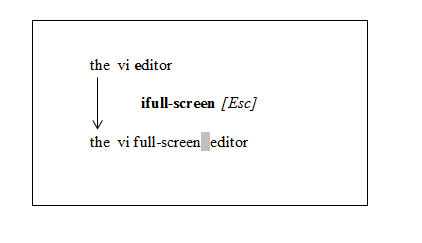
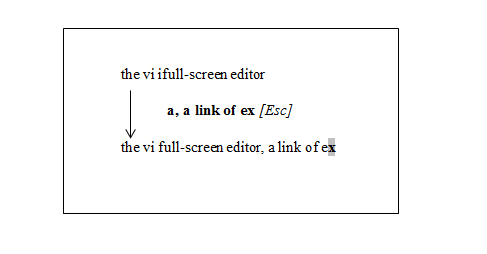
Insertion of text: for insert into input mode we can use (i and a) command. This commands changes mode from command to input. If you invoked this command on existing the cursor will shift into right side of text.If we use a for append the text will also shift to right side.
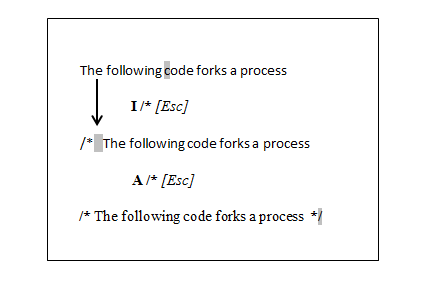
Insertion of Text at Line Extremes: Here we I for insert text at the beginning of line. A appends text at end of line.
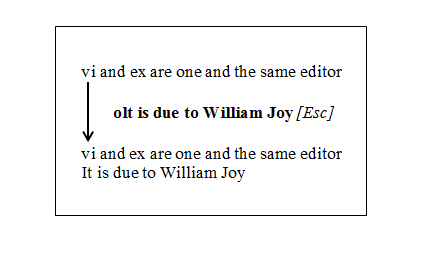
Opening a new line : o open the empty line below current line. O opens the empty line but above current line.
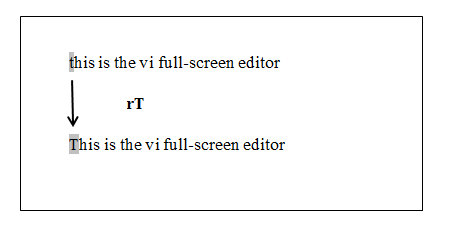
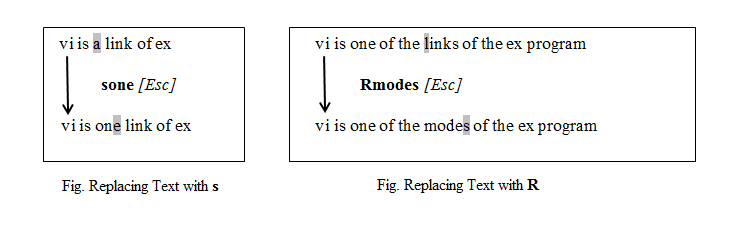
A replacing Text: To replace a single character with another, you can use r . For replacing one character with another character press s. R for replaces all text on the right side of the cursor. S replaces the entire line irrespective of cursor position.
2. Execution Mode( saving text and quitting):
In this mode we can use vi for saving file after writing and if we don’t want save file or how to quit from file. This feature is handle by execution mode.
- Saving your work (:w) : This command is use to write the buffer to disk. Enter : which appears on the last line of the screen , then w and finally [Enter].
- Saving and Quitting (:x and :wq) : To save and quit use [:x] command. You can also use [:wq] to save and quit.
- Abort and Escape to UNIX shell: To abort the editing process and quit editing mode without saving the buffer. For editing and compiling your C program, you have to make a temporary escape to shell to run the cc command. First use [:sh] and it returns a shell prompt. Now we can execute cc command.
- Recovering from a Crash: We can use the :recover or vi -r foo to recover the files. After you have done that look at buffer contents . If everything seems fine, save the buffer and remove the swap file if vi doesn’t do that on its own.
In next post, you will learn about word navigation ,copying and deleting lines by vi……..
 Tech Linux